.png)
1. Start With the Direct Security Answer
Microsoft 365 Copilot security starts with a simple rule: Copilot can only be as safe as the Microsoft 365 tenant it can read. The product is designed to respect existing identity, permissions, sensitivity labels, retention settings, audit features, and administrative controls. That is useful, but it also means Copilot can make old permission mistakes easier to find. A file that was overshared in SharePoint yesterday may become a fast answer in Copilot tomorrow.
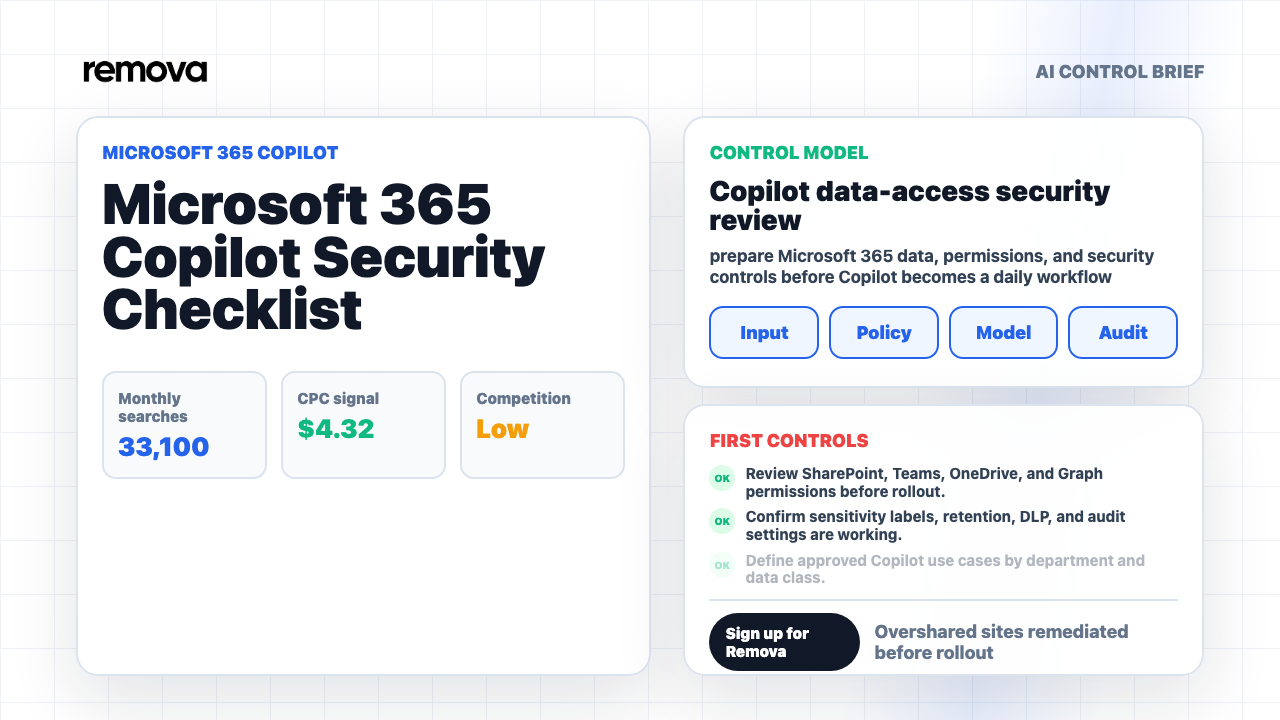
The practical answer is not to delay AI forever. It is to run a focused security review before broad rollout. Review SharePoint, Teams, OneDrive, Exchange, and Microsoft Graph exposure. Confirm sensitivity labels and DLP settings. Decide which teams can use Copilot for which data classes. Turn on the audit views that security teams will actually use. Give employees clear guidance about what Copilot can access and how to report unexpected results.
The buyer problem is specific. IT and security leaders are not only asking what Copilot does. They are asking whether Copilot will reveal sensitive content, amplify bad permissions, create new audit requirements, or confuse employees about where company data can go.
Official references include Microsoft 365 Copilot enterprise data protection, Microsoft 365 Copilot data protection architecture, Microsoft 365 Copilot data and compliance readiness, NIST Cybersecurity Framework, EU data protection legal framework. Microsoft explains that Copilot works within Microsoft 365 controls and uses data the user is already permitted to access. The operating question for your team is whether those permissions, labels, and audit settings are already clean enough for AI-assisted search, summarization, and drafting.
2. Map What Copilot Can Reach
The first security task is to map the real data surface. Microsoft 365 Copilot is not a separate empty chatbot. It can use Microsoft 365 context through Microsoft Graph, including content from the services your tenant already uses. That may include SharePoint sites, OneDrive files, Teams conversations, Outlook content, calendar context, user profile information, and recent collaboration signals, subject to the user's permissions and product settings.
Security teams should create a simple inventory before expanding access. Which repositories contain sensitive customer records? Which SharePoint sites were created for old projects and never cleaned up? Which Teams have guest users? Which OneDrive folders contain copied exports? Which mailboxes or shared folders contain HR, legal, finance, incident-response, or M&A material? Which labels are applied consistently, and which sensitive files are unlabeled?
The goal is not to document every file manually. The goal is to identify high-risk locations and patterns that Copilot could make more visible. Look for broad groups such as "Everyone", "Everyone except external users", stale project teams, anonymous sharing links, external guests with lingering access, and sites where owners have left the company. Those issues were already security risks. Copilot raises the priority because it can help users find and summarize content that would otherwise stay buried.
Remediation should be staged. Start with the most sensitive sites and the largest audiences. Remove broad links, replace individual access sprawl with managed groups, confirm site ownership, and document why remaining broad access is legitimate. Treat this as a data-access cleanup project, not an AI-only project. Copilot is the trigger, but the underlying issue is permission hygiene across the tenant.
3. Fix Permission Rot Before Rollout
Permission rot is the most common Microsoft 365 Copilot risk. It happens when files, folders, sites, teams, or groups accumulate access that no longer matches the business need. A finance workbook may be shared with an old cross-functional team. A customer list may sit in a project site with broad internal access. A confidential strategy deck may have a sharing link that was created for one meeting and never expired. Copilot does not need to break access controls to create a problem. It only needs to use the access that already exists.
Run the cleanup like a security release gate. Define the sensitive data classes that must be reviewed first: employee records, customer records, financial plans, source material for legal matters, contracts, healthcare or education data, authentication secrets, board materials, unreleased product plans, and regulated records. Then identify where those classes live in SharePoint, OneDrive, Teams, and Exchange. The first milestone is not a perfect tenant. It is reducing obvious overexposure in the places where harm would be highest.
Access reviews should have owners. A central IT team can produce reports, but business owners usually understand whether a team, site, or folder still needs broad access. Give each owner a short decision path: keep access, narrow access, archive content, apply a stronger label, or request an exception. Do not make this a vague request to "review permissions." Ask for a concrete decision by a date.
After launch, permission cleanup becomes a recurring control. New teams are created, files are copied, employees change roles, external collaborators leave, and project spaces go stale. Set a review cadence for high-risk locations and track remediation as an operational metric. Copilot readiness is not a one-time scan. It is an ongoing tenant hygiene habit.

4. Use Sensitivity Labels and DLP for AI Exposure
Sensitivity labels and DLP policies should be tested before Copilot is widely available. Labels tell Microsoft 365 how to classify and protect content. DLP policies help detect and control sensitive information in supported locations and workflows. For Copilot, those controls matter because the AI experience depends on the same information architecture employees already use.
Start with a small label taxonomy that employees can understand. Public, internal, confidential, highly confidential, and regulated may be enough for many teams. If the taxonomy is too complex, users will mislabel files or avoid labels entirely. For high-risk content, labels should carry protection behavior, not just visual markings. Consider encryption, access restrictions, external sharing limits, and container-level controls for sensitive groups and sites.
DLP should be tuned for the data classes that matter most. PII, PCI, source code, credentials, financial records, health data, student data, customer exports, and confidential legal material may require different actions. Some detections should warn and educate. Some should block. Some should route the event to security for review. The action should match the risk and the business context.
Do not assume a label exists just because a policy exists. Test with realistic files and prompts. Can a user summarize a highly confidential document? Can Copilot reference a file protected by permissions the user should not have? Are confidential emails, drafts, attachments, and meeting artifacts covered by the right settings? Do audit logs show the interaction clearly enough for investigation? The useful test is not whether the policy looks correct in an admin screen. The useful test is whether a risky employee workflow is handled correctly.

5. Define Approved Use Cases by Data Class
A strong Microsoft 365 Copilot rollout tells employees what they can use it for. Without that guidance, users will test whatever saves time: summarizing contracts, drafting HR messages, analyzing customer exports, preparing legal arguments, searching old incident notes, or generating executive updates from sensitive documents. Many of those workflows may be legitimate, but they do not all belong in the same risk tier.
Build the use-case map around data class and output use. Low-risk work might include summarizing public documents, drafting internal meeting notes, rewriting non-sensitive emails, or preparing outlines from general project material. Medium-risk work may include customer communications, contract summaries, support case analysis, or internal planning documents. High-risk work may include HR decisions, legal advice, regulated customer data, financial forecasts, security incidents, or board-level material.
Each tier should name allowed data, allowed users, review requirements, and escalation paths. For example, a sales team may use Copilot to draft follow-up emails from non-sensitive account notes, but not upload raw exports containing personal data unless the workflow is approved. HR may use Copilot for policy drafting, but not for employment decisions without human review and legal input. Finance may use Copilot to summarize approved reports, but not expose unreleased forecast workbooks to broad groups.
The use-case map should be practical enough for employees to remember. A one-page security sheet often works better than a long policy document. Use examples: "Allowed", "Ask first", and "Do not use Copilot for this." Make reporting easy when Copilot surfaces something unexpected. The fastest way to find hidden permission issues after launch is to give employees a simple channel to report surprising results without fear.
6. Set Audit Logs and Investigation Workflows
Copilot security needs investigation readiness. If an employee reports that Copilot surfaced a confidential document, the security team needs to answer basic questions quickly. Which user saw it? Which content was involved? What permissions allowed access? Was a sensitivity label present? Did DLP fire? Was the content shared externally? Did the user copy, export, or act on the answer? Who owns the site or mailbox where the source material lives?
Before rollout, decide which logs and reports security operations will use. Microsoft 365 audit capabilities, Purview views, Entra ID sign-in context, SharePoint sharing reports, DLP alerts, and service-specific activity records may all matter. The team should test the investigation path with a simulated issue rather than waiting for a real report. Create a tabletop scenario: Copilot returns sensitive salary planning content to a manager outside HR. Trace how the team would confirm the source, fix access, notify owners, and document closure.
Evidence should be useful without becoming a new sensitive-data pile. Prompt text, source snippets, file names, and user context can be sensitive. Decide who can view detailed records, when break-glass access is required, and how long investigation artifacts are retained. Logs should be searchable enough for incident response, but access to the logs should be limited and reviewed.
Remova complements this by creating audit evidence for AI usage outside Microsoft 365 Copilot as well. Many companies will use Copilot for Microsoft-native work and separate AI tools for chat, APIs, agents, model testing, and department workflows. A complete security picture needs both views: Microsoft 365 activity inside the tenant and a cross-model record of prompts, policy decisions, redaction events, model routes, and exceptions in the broader AI workspace.
7. Train Employees on What Copilot Can Access
Most Copilot security incidents will not start with malicious intent. They will start with confusion. Employees may believe Copilot is a private assistant, a search box, a writing tool, or a separate AI system that cannot reach sensitive content. They may not understand that results depend on their existing access. They may also assume that if Copilot can answer a question, then the answer is approved to use or share. Training should close those gaps before rollout.
The training should be short and specific. Explain that Copilot respects Microsoft 365 permissions, which means access mistakes can become answer mistakes. Explain that Copilot output can include sensitive information if the user already has access to it. Explain that users must not paste or request regulated data unless the use case is approved. Explain that AI-generated answers still need human review before customer, legal, HR, security, or financial use.
Give employees examples that match their jobs. Sales teams need to know how to handle customer notes and deal documents. HR needs to know how to handle personnel records. Legal needs to know how to handle privileged material. Finance needs to know how to handle forecast and close documents. Executives need to know how Copilot interacts with board materials and strategy files. Generic AI training will not be enough.
The most important training behavior is reporting. If Copilot surfaces a file, email, or answer that feels too sensitive, users should know exactly where to report it. The report should go to a workflow that can review the source permissions, site ownership, label state, and remediation action. Treat reports as signal, not blame. Users are often the fastest sensors for permission rot that automated scans missed.
8. Keep Copilot Separate From Broader AI Controls
Microsoft 365 Copilot is important, but it is not the whole AI environment. Employees may also use ChatGPT, Claude, Gemini, Perplexity, browser extensions, meeting tools, API clients, coding assistants, custom agents, and internal prototypes. A company can make Microsoft 365 safer and still leak data through a personal AI account five minutes later. That is why Copilot security should connect to a broader AI access plan.
The boundary is straightforward. Microsoft-native content needs strong Microsoft 365 controls: permissions, labels, retention, DLP, audit, and admin settings. Cross-provider AI usage needs controls at the AI workspace or gateway layer: user identity, prompt inspection, sensitive-data redaction, model routing, approved tools, usage analytics, budgets, and audit trails. Both layers matter because employees move across both layers during normal work.
This is where internal controls matter: role-based access, sensitive data protection, audit trails, policy guardrails, usage analytics. Remova gives teams a controlled AI workspace for work that does not belong solely inside Microsoft 365. Sensitive data can be detected before a prompt reaches a model. Role access can limit who uses which capabilities. Audit trails can show what happened across models and workflows. Usage analytics can reveal where adoption is growing and where risky patterns are emerging.
This split also helps procurement and incident response. Procurement can evaluate which AI tools need Microsoft-native controls and which need independent prompt-level controls. Incident response can avoid arguing about ownership during an event because the system boundary is already named. If the source is Microsoft 365 content, the investigation starts with tenant permissions and labels. If the source is a cross-model prompt or agent workflow, the investigation starts with Remova events, model routes, redaction records, and user identity.
The result is a cleaner operating model. Use Microsoft 365 controls to protect Microsoft 365 data. Use Remova to protect employee AI prompts, non-Microsoft models, multi-model workflows, APIs, and agent-style usage. The two approaches are complementary. Copilot improves productivity inside the Microsoft ecosystem; Remova helps keep the rest of the AI surface controlled.
9. Track the Metrics That Show Risk Is Falling
A Microsoft 365 Copilot launch should have security metrics from day one. Track the basics first: Overshared sites remediated before rollout; Copilot users by department; Sensitive content events; and Permission drift findings after launch. Those numbers help leaders see whether the rollout is becoming safer or merely larger. Adoption alone is not the success metric. The better question is whether adoption is increasing while overshared content, high-risk exceptions, and unresolved permission findings are decreasing.
Useful pre-launch metrics include the number of high-risk sites reviewed, broad sharing links removed, stale owners replaced, sensitive labels applied, access reviews completed, and DLP policies tested. Useful launch metrics include active Copilot users by department, security reports from users, sensitive content events, blocked or warned actions, and unresolved exceptions. Useful post-launch metrics include permission drift, repeat findings by business unit, incident response time, and remediation aging.
Review metrics with the owners who can act on them. A CISO can sponsor the program, but SharePoint site owners, data owners, business leaders, IT admins, legal, and compliance teams each own part of the result. If a department has repeated oversharing findings, the answer may be training, owner cleanup, site redesign, new labels, or a better approved workflow. Metrics should lead to actions, not just dashboard screenshots.
Separate leading indicators from lagging indicators. A count of reviewed sites is a leading indicator because it shows preparation work is happening. A sensitive result investigation is a lagging indicator because the exposure has already reached a user. Both matter, but they should not be mixed. Leaders need to know whether risk is being reduced before launch and whether controls are catching issues after launch. A clean dashboard should show readiness, live security events, remediation backlog, and owner accountability as separate views.
The pitfall list is short but serious: Licensing Copilot before cleaning up permissions; Treating Microsoft 365 controls as separate from AI security; and Ignoring user education around inherited access. These mistakes happen when Copilot is treated as a license rollout instead of a data-access change. A secure rollout treats every metric as a feedback loop. If users keep trying to summarize restricted records, investigate whether the workflow is truly prohibited or whether the company needs a safer approved path. If DLP fires constantly, tune the rule or update training. If adoption is low, make the safe path easier.
10. Create a Control-to-Evidence Matrix
Security teams should turn the checklist into a control-to-evidence matrix before launch. The matrix does not need to be complex. It should list the control, owner, system of record, evidence source, review cadence, and response path. This gives IT, security, compliance, legal, and business owners one shared view of how Copilot risk is being reduced.
Start with access controls. The control is least-privilege access to Microsoft 365 content. The owner may be the site owner or data owner. The evidence source may be SharePoint permission reports, Entra ID group membership, guest access reports, and access review records. The review cadence may be monthly for high-risk sites and quarterly for lower-risk locations. The response path should say who removes stale access, who approves exceptions, and how completion is recorded.
Then map data-protection controls. The control might be sensitivity labels for confidential content, DLP policies for regulated data, retention rules for records, and restricted access for high-risk containers. Evidence may include label coverage reports, DLP alerts, policy configuration history, sample test results, and remediation tickets. These records matter because they prove the team tested how sensitive content behaves before and after Copilot becomes available to users.
Next map AI-specific operating controls. The control might be approved Copilot use cases, employee training, report intake for unexpected results, and security review of high-risk prompts or outputs. Evidence may include training completion, use-case approvals, user reports, investigation notes, and closure records. This is where the program becomes more than admin configuration. It shows that users understand the tool, have a safe way to report issues, and see remediation when something is wrong.
Finally, connect Copilot evidence to the broader AI stack. If employees use ChatGPT, Claude, Gemini, internal assistants, or agent workflows alongside Microsoft 365 Copilot, the matrix should show where those interactions are controlled. Remova can provide evidence for prompt redaction, role access, model routes, policy decisions, budgets, and audit trails outside the Microsoft 365 boundary. A complete evidence matrix helps the company answer a simple executive question: where is AI being used, what data can it touch, and how do we know the controls worked?
11. Run the Final Readiness Test
Before broad rollout, run a final readiness test with real roles and realistic content. Pick one department, one sensitive SharePoint site, one Teams workspace, one OneDrive folder, one mailbox scenario, and one approved Copilot use case. Then ask practical questions. Can the right users get useful answers? Can the wrong users see nothing? Are sensitivity labels respected? Do DLP and retention settings behave as expected? Are audit events visible? Can security trace an unexpected result back to the source permission?
The test should include failure cases. Try an overshared file. Try a stale group. Try a confidential label. Try a regulated data sample. Try a user who recently changed departments. Try a guest user scenario. Try a prompt that asks for sensitive information in a way an employee might actually write. The goal is not to prove Copilot is perfect. The goal is to prove the tenant and response process are ready for ordinary mistakes.
If the test fails, slow the rollout scope, not the entire AI plan. Limit access to ready departments. Exclude or remediate high-risk sites. Strengthen labels. Improve DLP. Add a reporting path. Give admins time to fix the most dangerous findings. A phased rollout is usually better than a full stop because employees already want AI assistance. If the approved path is delayed indefinitely, unmanaged tools become more attractive.
The final answer is this: Microsoft 365 Copilot security is a data-access discipline. Clean up what users can reach, label what needs protection, test DLP and audit, train employees, and connect Copilot to the rest of your AI security stack. Remova fits as the control layer for prompts, model access, redaction, policy decisions, and audit evidence beyond Microsoft 365. Sign up for Remova when you are ready to give teams useful AI access without losing visibility into sensitive data.
Direct Answer: What Should Be in a Microsoft 365 Copilot Security Checklist?
A Microsoft 365 Copilot security checklist should include Microsoft Graph data exposure, SharePoint and OneDrive permission cleanup, Teams access review, sensitivity labels, DLP policies, retention settings, audit logging, user training, incident-response workflow, approved use cases by data class, and metrics for permission drift after launch. The checklist should be tested with real users, real content types, and realistic prompts before broad rollout.
The key entity relationship is simple: Microsoft 365 Copilot uses Microsoft 365 context, Microsoft Graph connects that context, Entra ID and Microsoft 365 permissions shape what a user can access, Purview helps classify and protect sensitive data, and audit logs help security teams investigate what happened. Remova adds a separate control layer for AI prompts, model access, redaction, policy decisions, and audit trails across non-Microsoft models and AI workflows.
The short version is: secure Microsoft 365 Copilot by fixing permissions first, applying labels and DLP second, enabling audit and response workflows third, training employees fourth, and monitoring permission drift continuously after launch.